Block Accumulation
In this window we will create many different DFN realisations from our DFN input parameters. For each DFN realisation the app will search for tetrahedral blocks which form on the outside of the excavation surface, and then save those blocks into the project folder.
First we click the Initialise analysis button. Warning: this will clear any existing data in this project folder. This also saves the excavation shape into the project folder.
After the project folder has been initialised you should see additional controls with an input for the Number of DFNs to generate, and a button to Run analysis. If we set 10 DFNs to generate and click the button, then the block finding process will run for 10 DFN realisations.
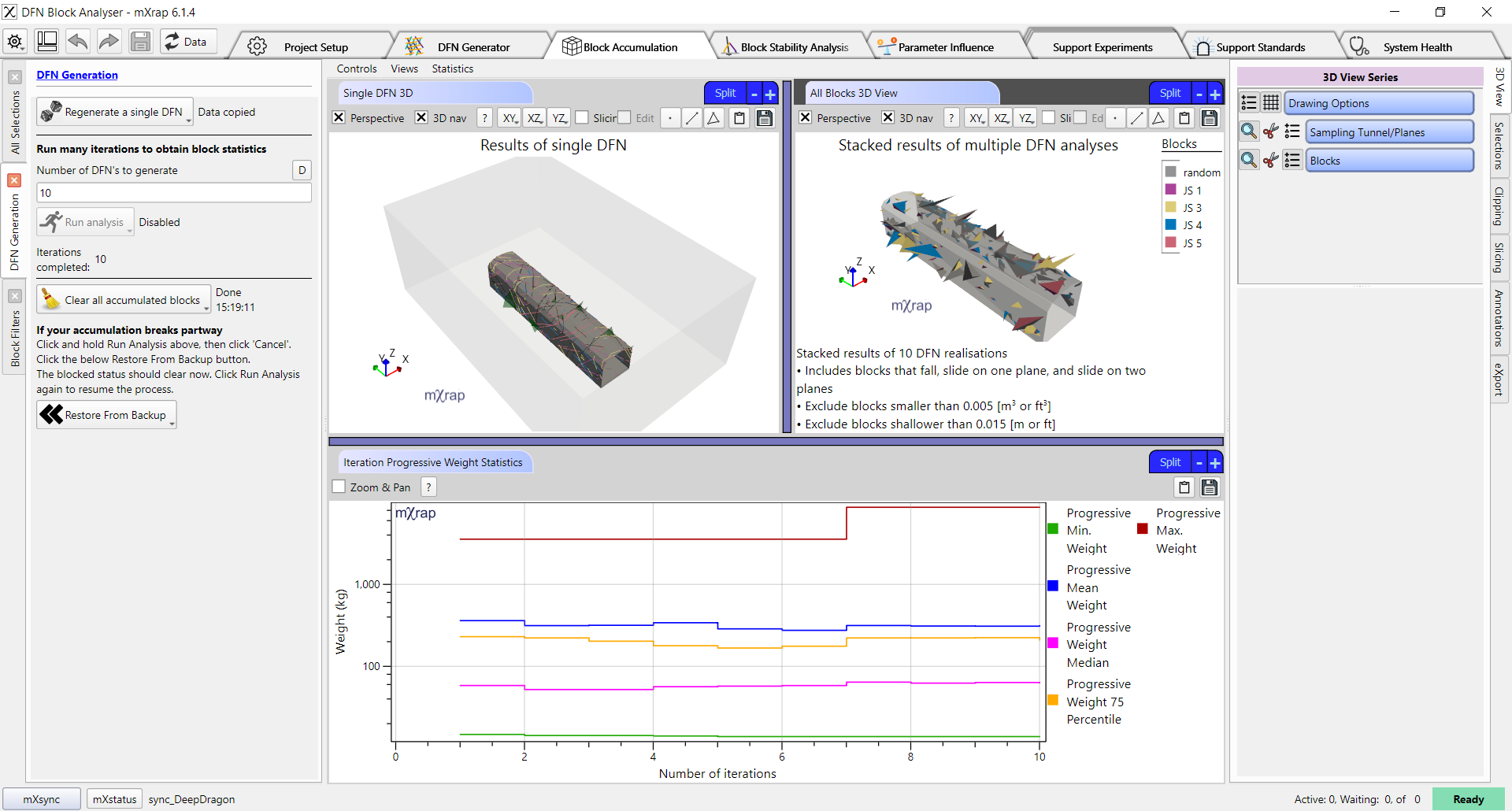
The Single DFN 3D view (top-left) shows the blocks found in the current DFN realisation. The All Blocks 3D View (top-right) shows all blocks that have been saved into the project folder. At the bottom of the screen the Iteration Progressive Weight Statistics chart shows statistics about the accumulated block weights, calculated progressively across all runs. For example, the mean weight line at X=5 will show the mean weight of all blocks from the first 5 DFN realisations. We want to run enough DFN realisations for these lines to stabilise, and so that we get a good distribution of block formation around our excavation surface.