New Survey Clipping tool available

mXrap now includes a new tool that can automatically create your clipping volumes, based on survey files you select.
Following feedback from users who would like to automatically generate clipping volumes from existing surveys, you can now use the Survey Clipping tool to do just that.
The new tool can be accessed through the General Setup Window and under Survey Clipping (located between the Filter Volumes Editor and the Grid Editor):
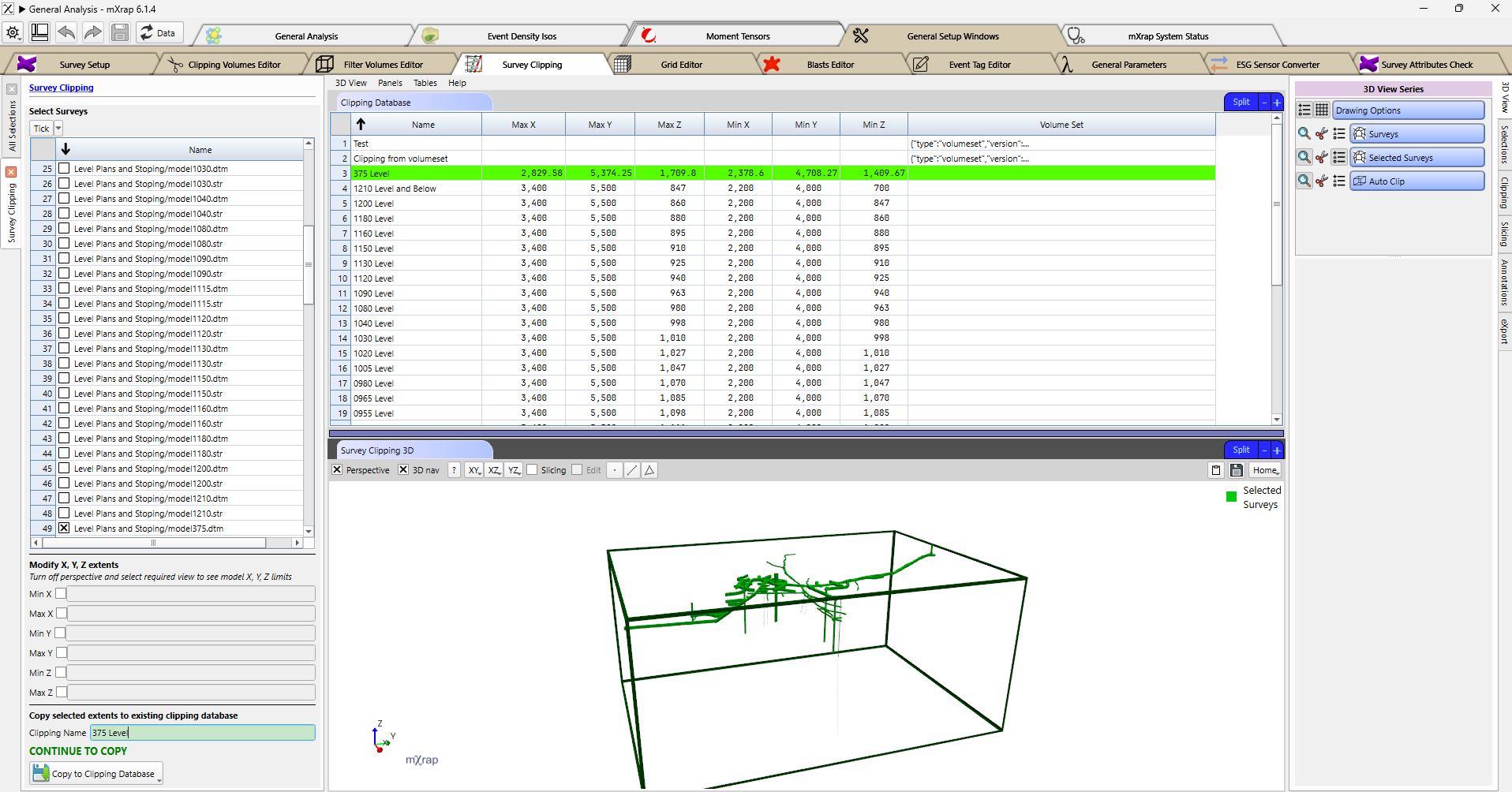
In this tool, you can use any survey shape stored in your basic site surveys. Once you select the survey files in the left‑hand panel, a green box representing the clipping volume appears in the 3D window, and the corresponding parameters are highlighted in green in the table view. You can then adjust the extents before saving, allowing you to define a custom volume based on the selected surveys.
After saving, the volumes are added to the main clipping volumes panel, where they can be used throughout the mXrap suite. A worked example is included below.
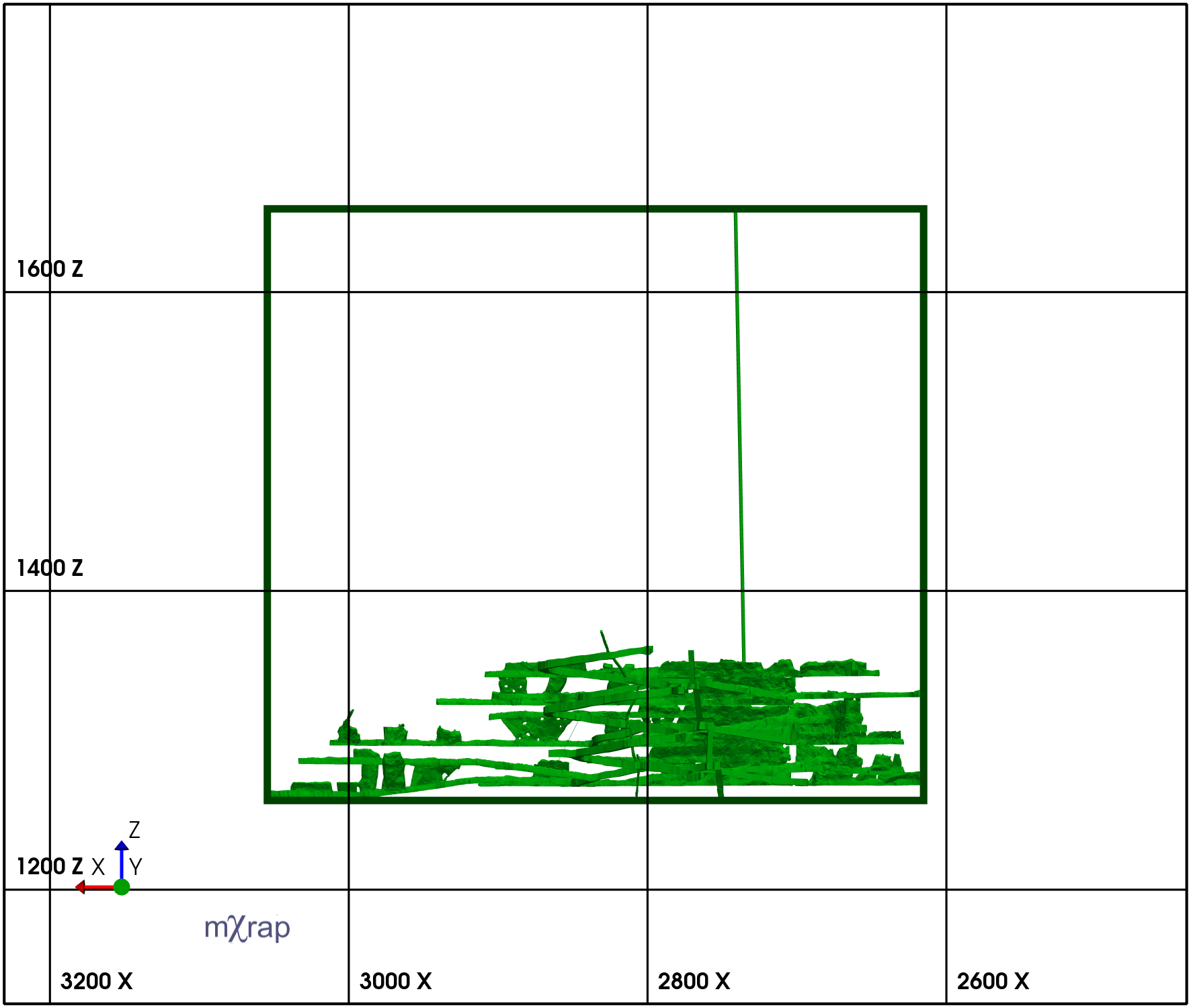
In this example, several surveys have been selected to define the clipping range, shown in X–Z view with perspective disabled. A vertical raise contained in one of the level surveys pushes the clipping box higher than the adjacent development and stoping.
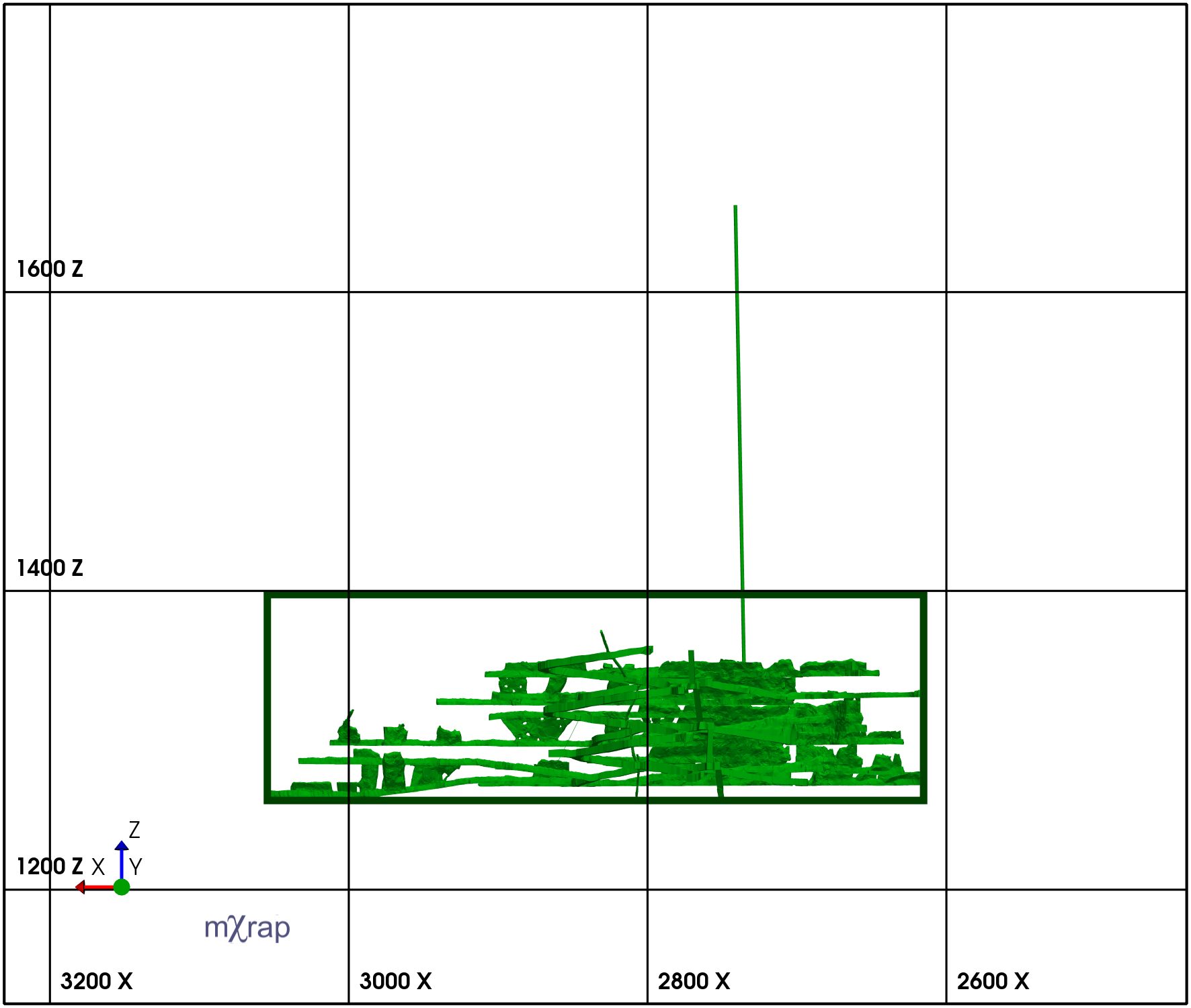
In this case, we don’t want to include the vertical development in the new clipping volume. Using the Survey Clipping panel on the left, we can limit the maximum Z of the volume to the target RL. The green clipping box updates automatically, and we now have the volume we want to save to the clipping volumes table.
After naming the clipping volume, select Save at the bottom of the panel. The volume is added to the full clipping volumes table and becomes accessible from the General Analysis window and all other mXrap applications.