Per-Face Editors
Purpose
This window contains several utilities which allow the user to edit some per face parameters
Face Tag Editor
Purpose
This window contains several utilities which allow the user to edit some per face parameters
Steps
- Select a stope from the list
- Select the face to reassign and choose a replacement tag
- Click Save Face Tag
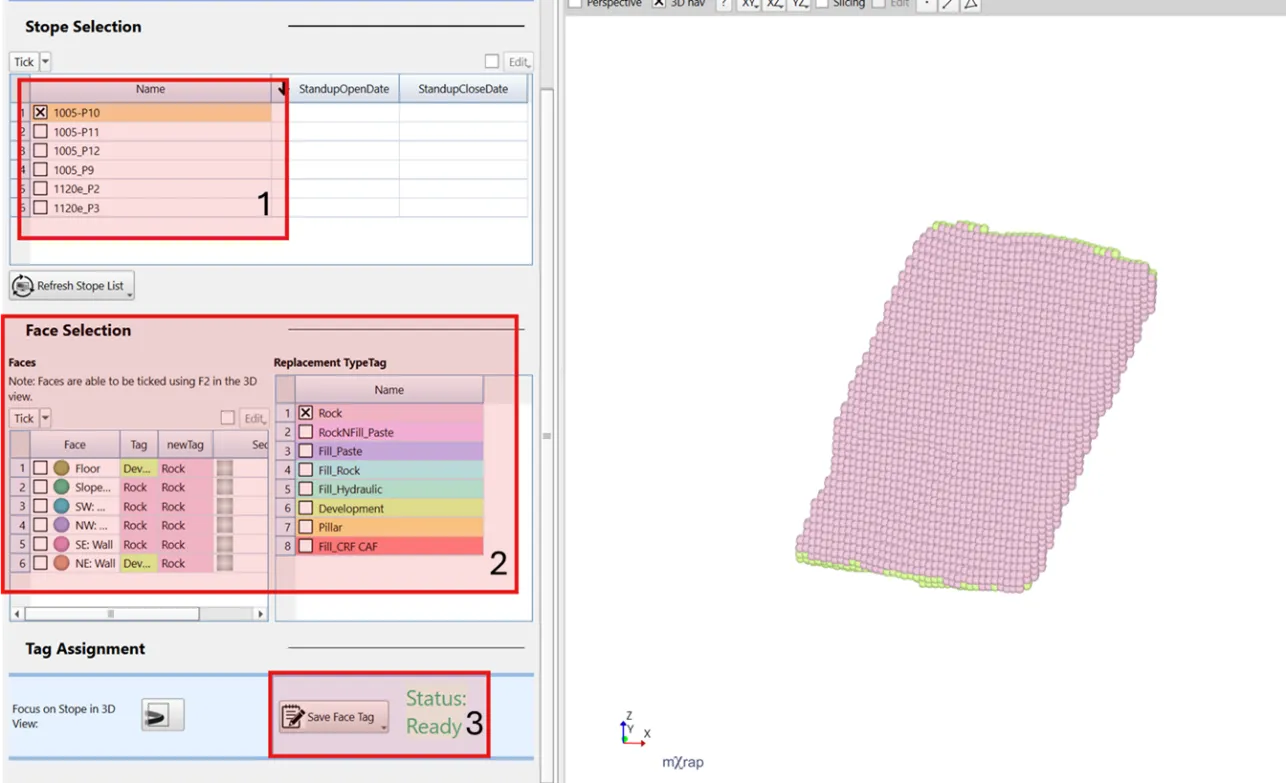
Clicking the action, Focus on Stope in 3D View, and the 3D view can help guide what a stope face should be assigned. If the stopes have standup dates when this stope was completed, its relation to surrounding stopes can be displayed (stope sequence 3D view series).
Ground Support
Purpose
While still under development and only a first pass, ground support design strings can be used for approximate quantification of support per face. Ring Spacing, Bolt Spacing, and Bolt Type are used for filtering and group by options in the Analysis window to investigate the impact of ground support on stope performance.
Steps
- Tick a stope from the table view.
- Tick the ring and bolt spacing, and bolt type tag along with the face.
- Push Ticked will assign a tag to a face.
- Once all tags are assigned click Save All
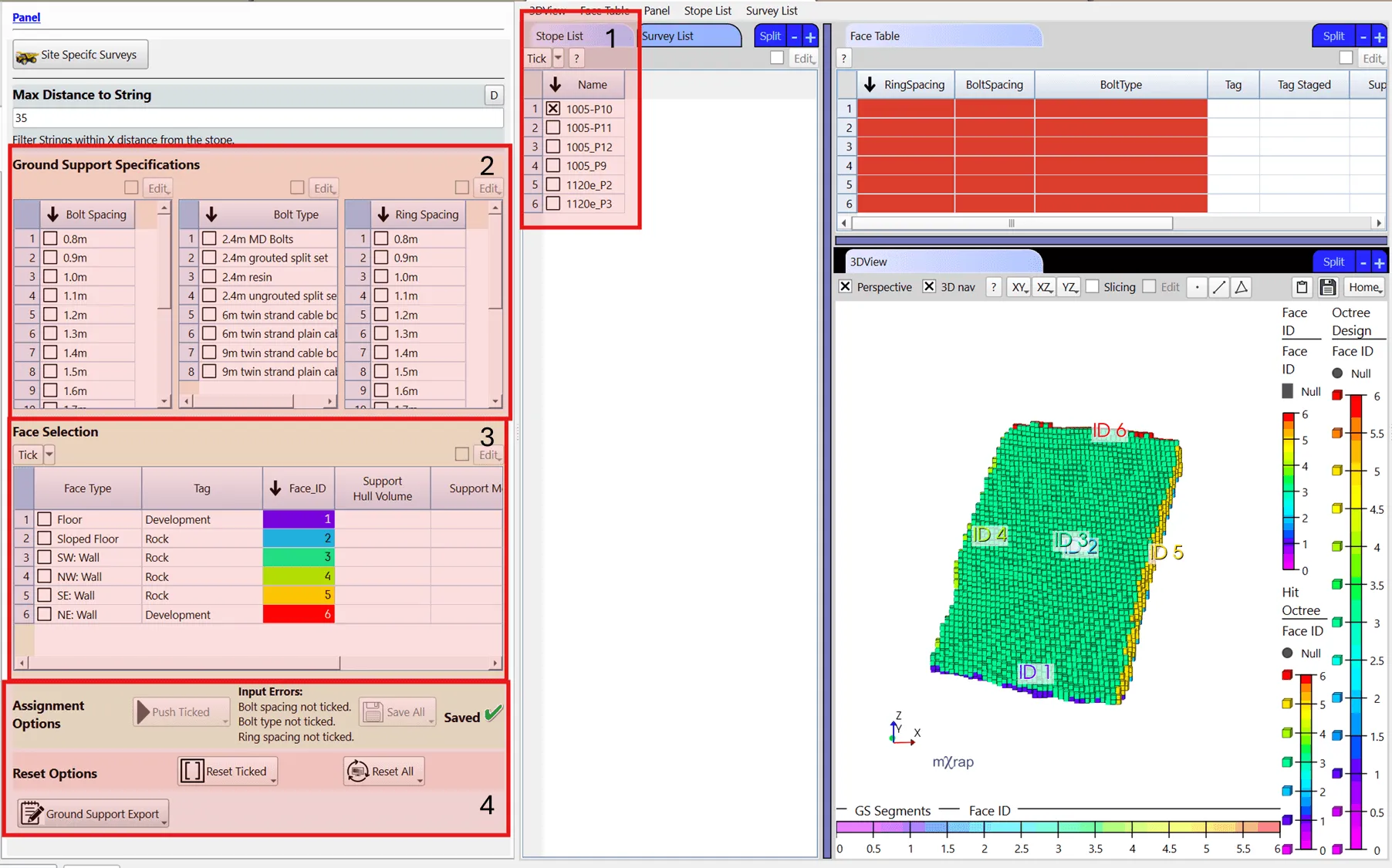
The Annotation tab in the 3D view is handy to check spacings.
Tags can still be assigned without any surveys if they are missing.
Geotechnical Information
Purpose
This window will fetch data from a block model, sample boreholes in front of individual stope faces or sample boreholes in the region. Summarise geotechnical parameters per face and calculates factors needed for the Stability Chart.
Steps
- Tick a stope from the table view.
- Check mapping variables (distances and priority for association).
- Tick the critical joint sets for Stability Chart calculations.
- Refine geotechnical values in the table view. Tick on the Edit option and double click to change a cell. Pasting values for individual and multiple cells also works.
- Recalculate parameters as prompted. While not strictly required, this ensures calculated factors are consistent with their input variables.
- Click the Geotech Export action to update
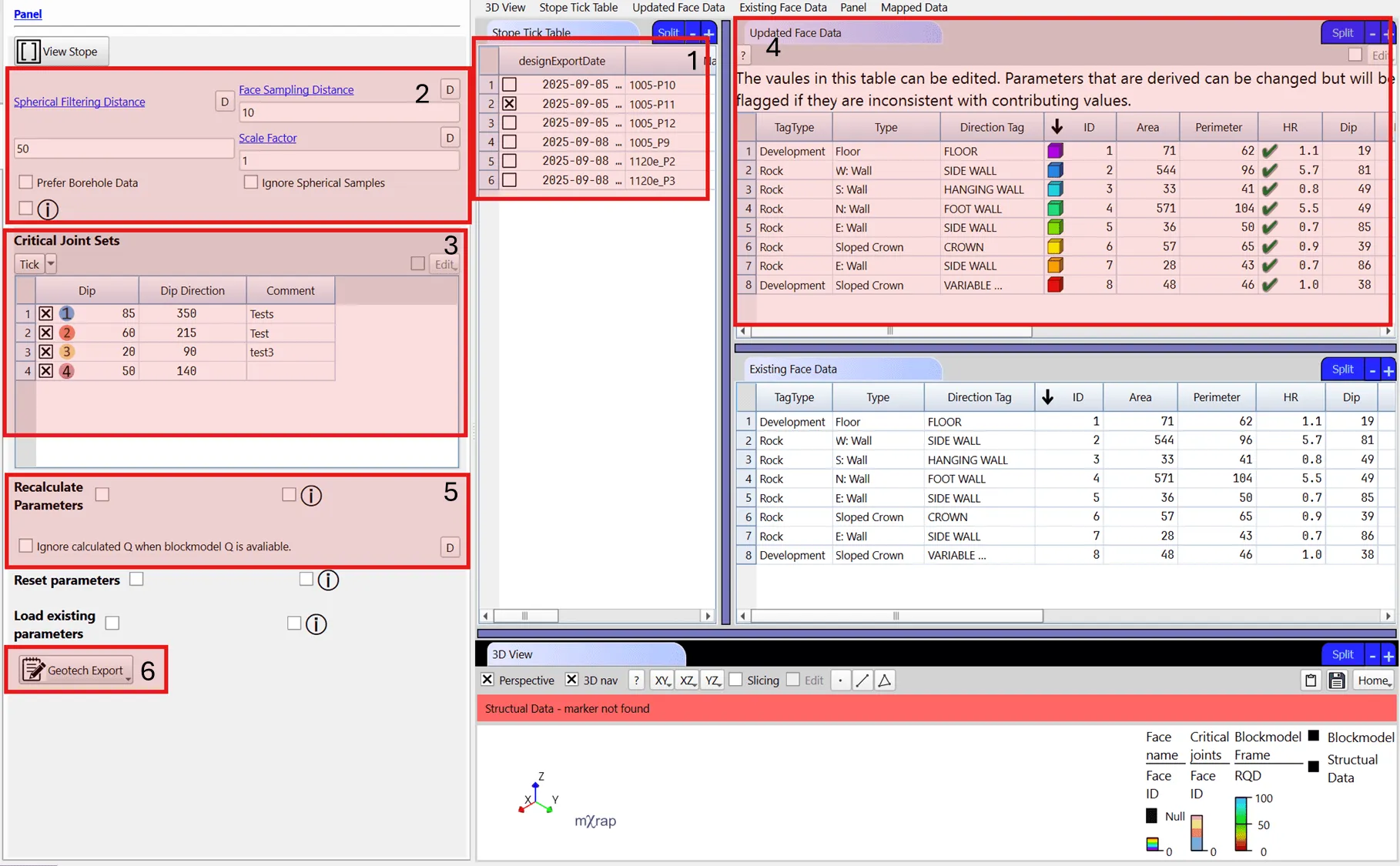
Individual (or all) parameter columns can be reset to the values originally mapped from geotechnical data.
Individual (or all) parameter columns can be loaded from the existing table instead of the boreholeor blockmodel data.